 Mopup
MopupHow to clear cache on a Mac safely
A cache is a copy of something an app has already downloaded or worked out, kept so it doesn't have to do the work again. Caches are safe to delete because apps rebuild them. An app may be a little slower the first time afterwards, and it's best to quit an app before you clear its cache.
Where caches live
~/Library/Caches: your apps' caches, one folder per app, named after the app or its ID, likecom.spotify.client./Library/Caches: caches shared by everyone on the Mac. Most belong to macOS or to installers; leave them alone.- Inside your browsers, which have their own way to clear them.
See which caches are big
This lists the 15 largest caches, smallest first, and changes nothing:
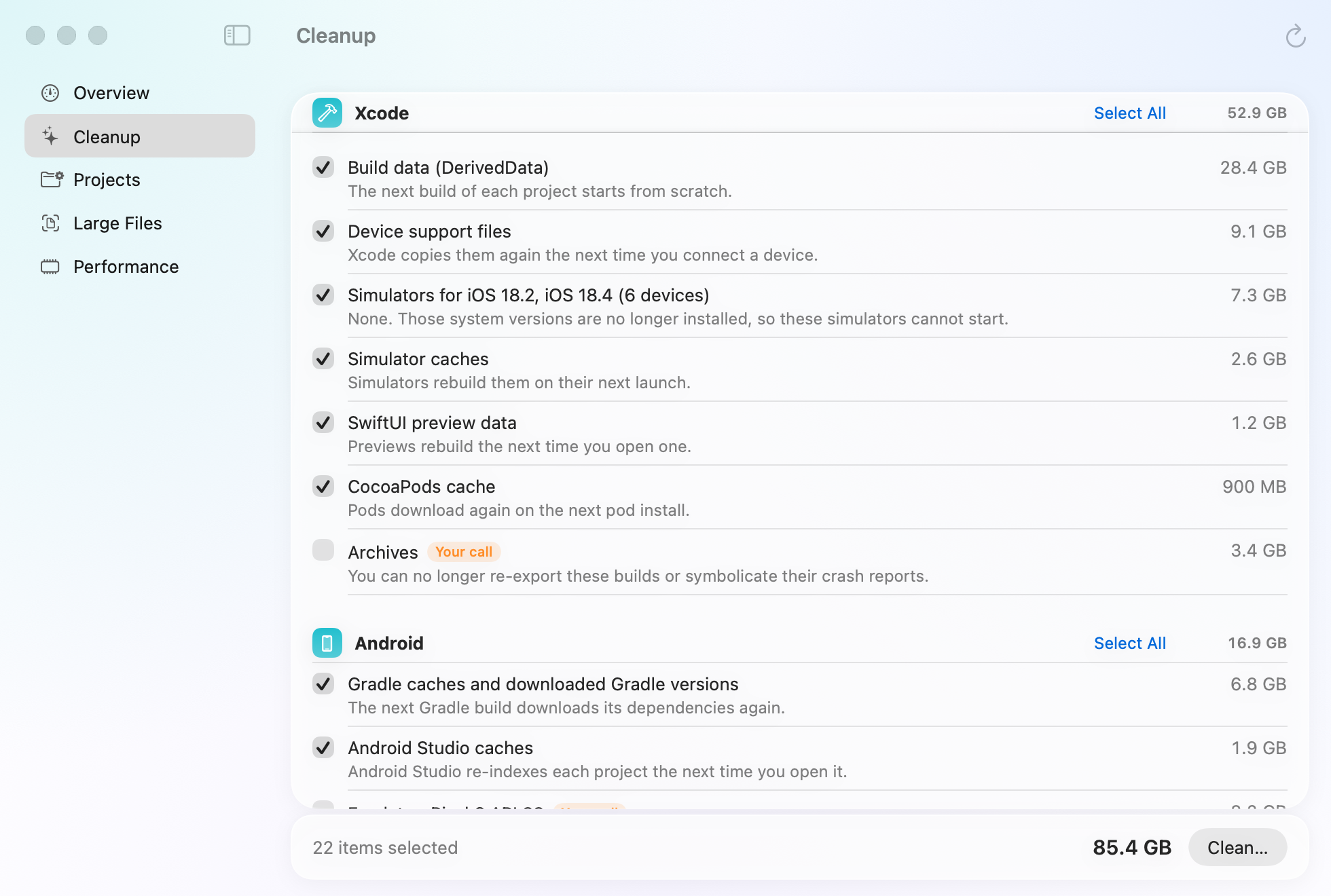
du -sh ~/Library/Caches/* 2>/dev/null | sort -h | tail -15Browsers, music and video apps, and developer tools are often at the top.
Clear an app's cache
- Quit the app.
- In Finder, choose Go › Go to Folder, type
~/Library/Cachesand press Return. - Open the app's folder and move what's inside it to the Trash. Leave the folder itself in place.
- Empty the Trash to get the space back.
Clear your browser's cache
- Safari: choose Safari › Settings › Advanced and turn on "Show features for web developers". Then choose Develop › Empty Caches.
- Chrome: open Settings › Privacy and security › Delete browsing data, tick "Cached images and files", and leave "Cookies and other site data" unticked so you stay signed in to websites.
- Firefox: open Settings › Privacy & Security, choose Clear Data under Cookies and Site Data, and tick only "Temporary cached files and pages".
What to leave alone
- The caches of apps that are open. Quit them first.
- Folders whose names start with
com.apple. Clearing them gains little, because macOS rebuilds them right away. - Scripts that empty all of
~/Library/Cachesat once. Every app then starts over at the same time, which makes your Mac feel slow for a while.
Caches come back
Most caches grow again as you use your apps, and that's normal. Clearing them helps when space is tight or an app misbehaves. There's no need to do it every week.
Related guides
- What is System Data on a Mac?What fills the grey System Data bar in your storage settings, and how to shrink it safely.
- How to uninstall apps completelyRemove an app together with the settings, caches and data it leaves in your Library.
- How to find and remove duplicate filesFind identical files and near-identical photos, decide which copy to keep, and remove the rest.