 Mopup
MopupMopup › Guides › Uninstall apps
How to uninstall apps completely on a Mac
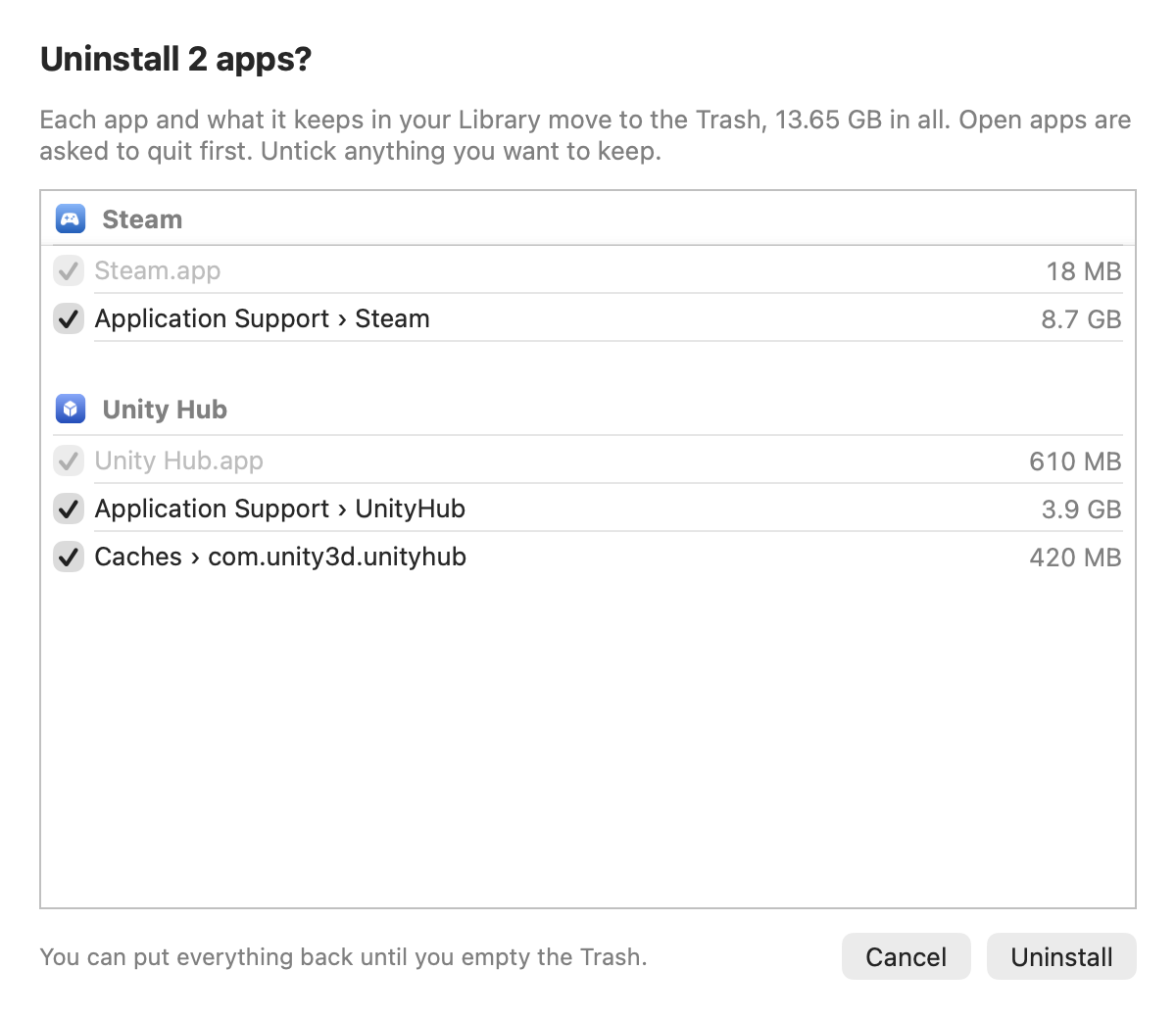
Dragging an app to the Trash removes the app, but not the settings, caches and data it created in your Library. Over the years those leftovers can add up to gigabytes. Here's how to remove an app with everything it left behind.
1. Check for an uninstaller
Some apps install parts outside the app itself: VPNs, security tools, drivers, and suites like Adobe's and Microsoft's. If the app comes with its own uninstaller, use it. Look in the app's folder in Applications, in its menus, or on the maker's website. An uninstaller removes the parts that dragging to the Trash can't reach.
2. Note the app's ID
Most leftovers are named after the app's bundle ID, a name like com.spotify.client. Find it before you delete
the app:
osascript -e 'id of app "Spotify"'3. Move the app to the Trash
Quit the app, then drag it from Applications to the Trash. macOS may ask for your password for apps installed for everyone on the Mac.
4. Remove what it left in your Library
In Finder, choose Go › Go to Folder, type ~/Library and press Return. Look for folders and files named after
the app or its ID in these folders:
| Folder | What the app keeps there |
|---|---|
| Application Support | Settings and data, often the largest part |
| Caches | Files it can download or work out again |
| Containers and Group Containers | All the data of App Store apps and other sandboxed apps |
| Preferences | A .plist file with its settings |
| Saved Application State | The windows it had open |
| Logs, HTTPStorages and WebKit | Logs and the web data it stored |
To list everything with the app's name in your Library, without changing anything:
find ~/Library -maxdepth 3 -iname "*spotify*" 2>/dev/nullMove what belongs to the app to the Trash. If you aren't sure a folder belongs to it, leave it.
5. Remove its login items
Open System Settings › General › Login Items & Extensions. Remove the app from "Open at Login", and turn off any background item it left under "Allow in the Background".
Watch out for shared folders
Apps from the same company sometimes share a folder, such as Microsoft or Google in Application Support. If you still use another app from that company, keep the shared folder.
Related guides
- What is System Data on a Mac?What fills the grey System Data bar in your storage settings, and how to shrink it safely.
- How to clear cache on a Mac safelyWhich caches are safe to delete, where they live, and how to clear app and browser caches.
- How to find and remove duplicate filesFind identical files and near-identical photos, decide which copy to keep, and remove the rest.