 Mopup
MopupMopup › Guides › Duplicate files
How to find and remove duplicate files on a Mac
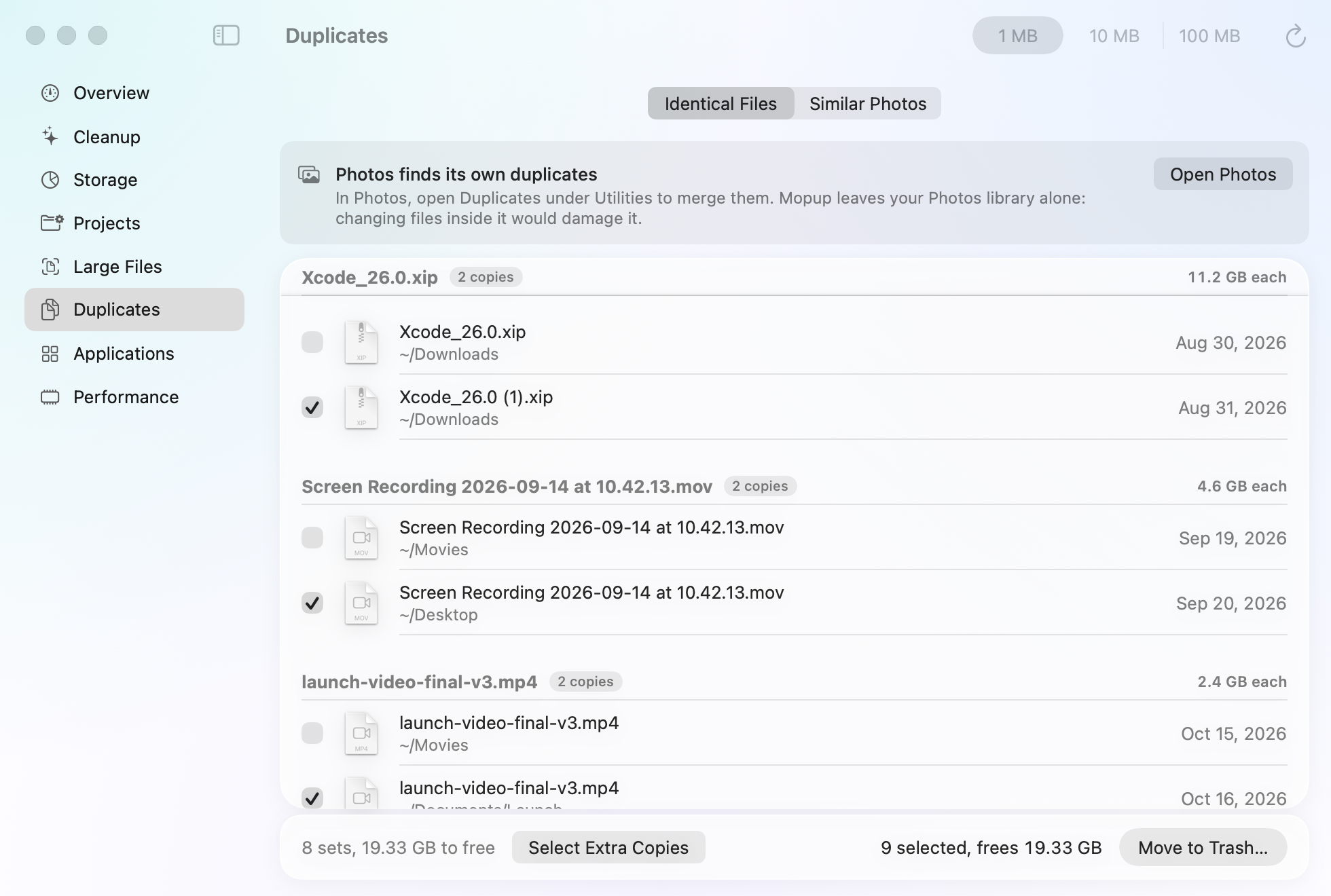
Duplicates pile up quietly: a download saved twice, a video exported to two folders, the same photos copied off a camera more than once. Removing them is quick once you know which copies are truly identical.
Identical files and similar photos
An identical file is a byte-for-byte copy: the same content, whatever its name. Keeping one and removing the rest loses nothing. Similar photos, like the frames of a burst or a quick retake, are different files, and choosing between them means deciding which shot is better.
Start with Photos
If your pictures live in the Photos app, use its own tool: open Photos and choose Duplicates under Utilities in the sidebar. It merges duplicates inside your library. Don't remove files from inside the Photos library in Finder, which can damage the library.
Find identical files yourself
This lists files over 1 MB in your Downloads folder that have an identical copy there, by comparing their contents. It changes nothing:
find ~/Downloads -type f -size +1M -exec shasum -a 256 {} + | sort | awk '$1==h{print p; print} {h=$1; p=$0}' | uniqLines that start with the same long code are identical files. Change ~/Downloads to search another folder,
such as ~/Documents.
Which copy to keep
- The one in the folder where you'd look for it, usually Documents or Pictures rather than Downloads.
- The one with the original name, rather than one ending in "copy" or "(1)".
- Both, when they sit inside a project, an app's library or a backup: whatever uses them expects each copy where it is.
Move duplicates to the Trash rather than deleting them outright, so you can put back a mistake.
Similar photos
For photos outside Photos, sort the folder by date: bursts and retakes are taken seconds apart, so they end up side by side. Select a few and press Space to compare them in Quick Look, then keep the sharpest.
Related guides
- How to clear cache on a Mac safelyWhich caches are safe to delete, where they live, and how to clear app and browser caches.
- How to uninstall apps completelyRemove an app together with the settings, caches and data it leaves in your Library.
- What is System Data on a Mac?What fills the grey System Data bar in your storage settings, and how to shrink it safely.