 Mopup
MopupWhat is System Data on a Mac, and how do you reduce it?
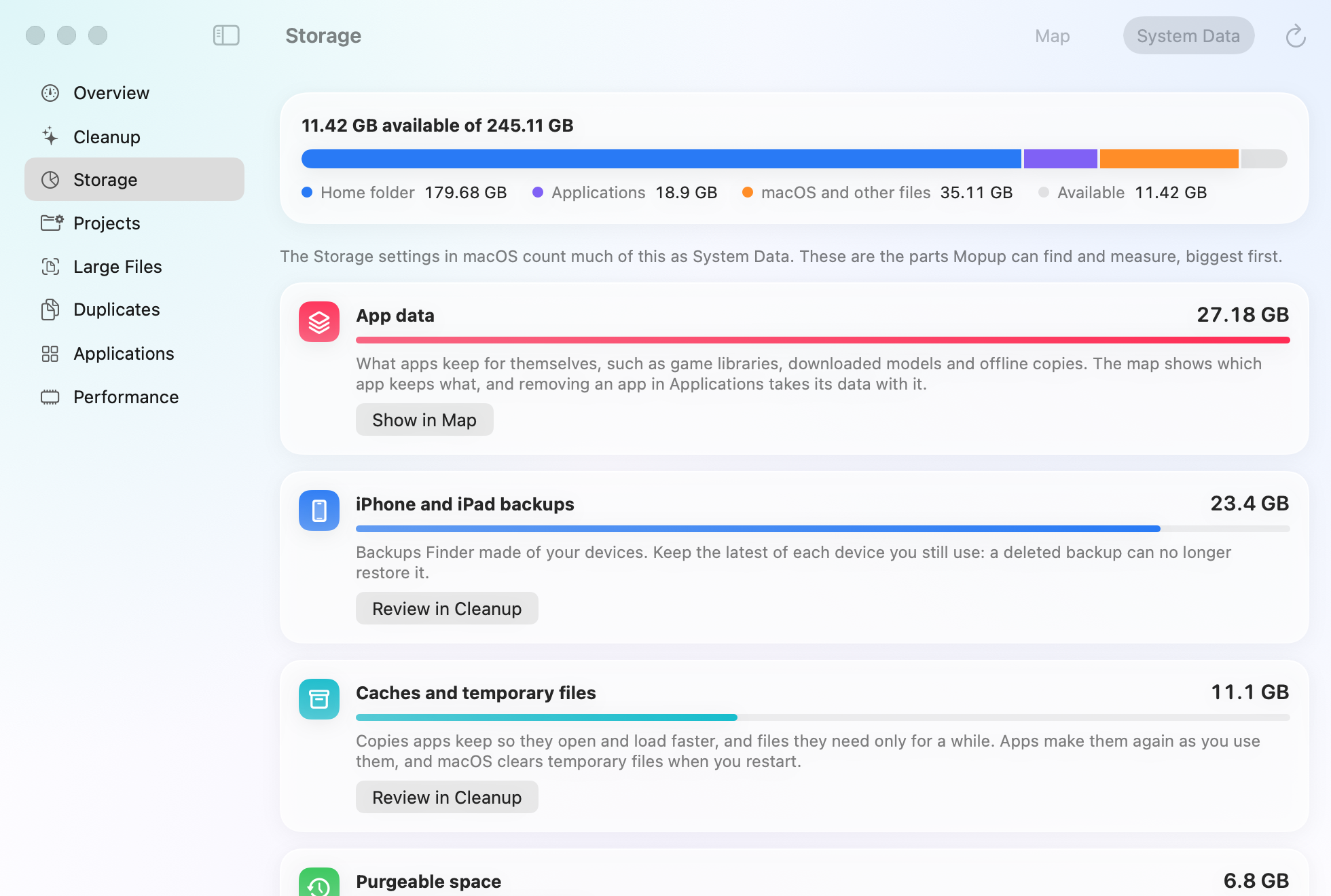
System Data is the grey part of your Mac's storage bar that grows without a clear reason. It holds everything macOS doesn't sort into another category, from caches to virtual machines, and a good part of it can go safely.
Where to see it
Choose Apple menu › System Settings › General › Storage. The bar at the top splits your disk into categories such as Applications, Documents, macOS and System Data. Give it a minute: macOS works out the sizes in the background.
Two things you might expect in System Data usually have their own category: iPhone and iPad backups show as iOS Files, and Xcode's data shows as Developer.
What's inside System Data
- Caches that apps keep so they load faster, mostly in
~/Library/Caches. Apps rebuild them when needed. - Logs and diagnostic reports, in
~/Library/Logsand/Library/Logs. - Time Machine local snapshots. When Time Machine is on, macOS keeps snapshots of your files on your Mac for about a day, and deletes them by itself when it needs the space.
- Virtual machines and containers, such as the single large disk image Docker Desktop keeps in
~/Library/Containers/com.docker.docker. - App data in
~/Library/Application Support, including what apps you deleted long ago left behind. - Temporary files and swap that macOS uses while it runs.
How to reduce it safely
- Restart your Mac. A restart clears temporary files and swap, and can free several gigabytes by itself.
- Empty the Trash. Files you moved there still take space until you do.
- Clear app caches you don't need. Our guide to clearing cache shows which are safe.
- Remove what deleted apps left behind in your Library, as the uninstall guide describes.
- Shrink Docker's disk image if you use Docker, with the commands in the Docker guide.
- Leave Time Machine's local snapshots to macOS, or remove them yourself (below).
Time Machine's local snapshots
To list them:
tmutil listlocalsnapshots /Each line ends with a date, like com.apple.TimeMachine.2026-10-27-101530.local. To delete one:
sudo tmutil deletelocalsnapshots 2026-10-27-101530This deletes that snapshot from your Mac only. Backups on your Time Machine disk stay as they are.
Find out what's big yourself
This lists the 15 largest folders in your Library, smallest first, and changes nothing:
du -sh ~/Library/* 2>/dev/null | sort -h | tail -15To look one level deeper, run it on the biggest folder, for example:
du -sh ~/Library/Application\ Support/* 2>/dev/null | sort -h | tail -15What not to delete
- Anything in
/Systemor/private/var. macOS needs it, and protects most of it anyway. - Your whole
~/Libraryfolder, your Keychains, or Mail's folders. - Folders in Application Support for apps you still use. They hold your settings and data.
Related guides
- How to clear cache on a Mac safelyWhich caches are safe to delete, where they live, and how to clear app and browser caches.
- How to uninstall apps completelyRemove an app together with the settings, caches and data it leaves in your Library.
- How to free up Docker Desktop disk spaceSee what fills Docker's disk image and reclaim space with Docker's own prune commands.