 Mopup
MopupMopup › Guides › How the Storage map works
How Mopup maps 2 million files in 21 seconds
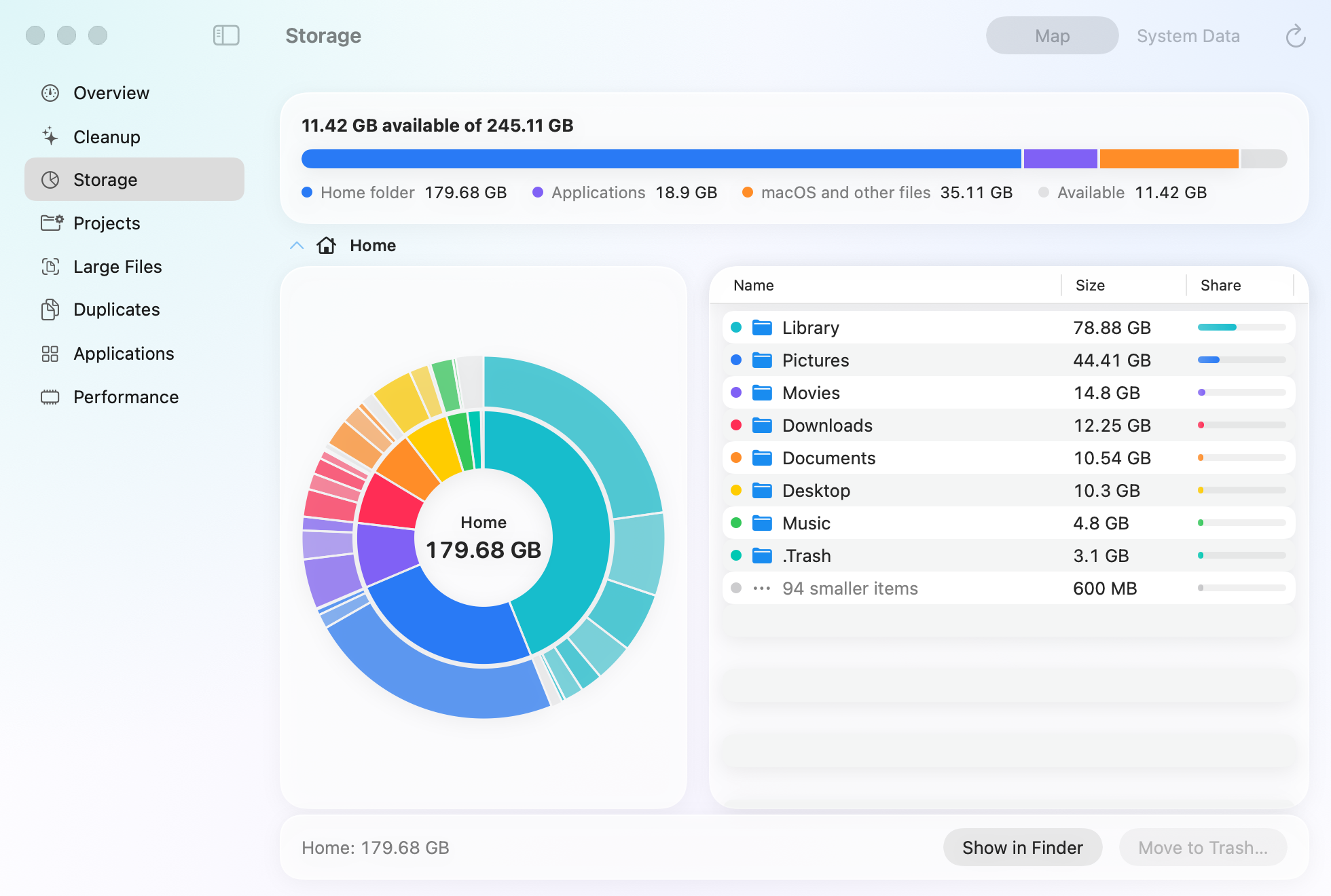
Mopup now has a disk map: your home folder drawn as rings, folder by folder, so you can see where the space went and click into the biggest folder. It had to be fast, it had to fit in memory on an 8 GB Mac, and it had to work without root or Full Disk Access.
On a MacBook Pro with an M1 and 16 GB, it walks 1,960,204 files and folders, 184 GB, in 21 seconds.
du -sk ~ takes 47 seconds on the same folder, with the same warm cache, and gives you one number. Here's how the
map does it.
One system call per folder, not per file
The usual way to measure a tree is to list a folder, then stat every entry in it: a system call per file.
macOS has getattrlistbulk(2). You open a folder, say which attributes you want, and the kernel fills a buffer
with as many entries as fit, each carrying exactly those attributes. Mopup asks for the name, the type, the file ID,
the link count, the space allocated on disk and the APFS clone ID:
var list = attrlist()
list.bitmapcount = u_short(ATTR_BIT_MAP_COUNT)
list.commonattr = attrgroup_t(ATTR_CMN_RETURNED_ATTRS) | attrgroup_t(ATTR_CMN_NAME)
    | attrgroup_t(ATTR_CMN_DEVID) | attrgroup_t(ATTR_CMN_OBJTYPE)
    | attrgroup_t(ATTR_CMN_MODTIME) | attrgroup_t(ATTR_CMN_FILEID)
list.fileattr = attrgroup_t(ATTR_FILE_LINKCOUNT) | attrgroup_t(ATTR_FILE_ALLOCSIZE)
list.forkattr = 0x0000_0100  // ATTR_CMNEXT_CLONEID, with FSOPT_ATTR_CMN_EXTENDED
With FSOPT_PACK_INVAL_ATTRS, every entry has the same layout, so reading one is a handful of loads at fixed
offsets into a 64 KB buffer that is reused from folder to folder. A folder of a few thousand files takes one or two
calls. The allocated size is what a file takes on disk, not its length, which is the number you want when you're
asking where your space went.
Many threads, split two levels down
One walk on one thread leaves most of the cores idle, but you can't split a tree evenly without knowing its shape. So
the map reads the top of it first, on one thread: the home folder and the folders directly in it. Every folder one
level further down, such as ~/Library/Caches or ~/Projects/app, becomes a job of its own for
DispatchQueue.concurrentPerform. A home folder has a few hundred of those, enough to keep every core busy even
when one of them, like a Photos library, is far bigger than the rest. Each job builds its own small tree, and at the
end they are grafted onto the top.
Don't keep what you won't draw
My first version kept a dictionary from every folder's path to its totals. Each path is stored twice, once as a key
and once in its parent's list of subfolders, and a developer's home folder holds hundreds of thousands of folders,
most of them inside node_modules. On paper that is hundreds of megabytes before anything is drawn.
The version that shipped keeps no paths. Each walk records its folders as plain arrays, in the order it visits them:
struct Tree {
    var parents: [Int32] = []    // the index of the folder it is in
    var names: [String] = []
    var own: [Int64] = []        // bytes of the files directly inside
    var ownCount: [Int32] = []
}
A walk visits a folder before anything inside it, so every folder comes after its parent. One pass backwards over the arrays therefore finishes each folder's total before adding it to its parent's:
var total = own
for index in stride(from: count - 1, through: 1, by: -1) {
    total[Int(parents[index])] += total[index]
}
Only items of a megabyte or more become nodes in the map, at most 60 in a folder. The rest are counted as one row, "1,240 smaller items". Whatever the size of the disk, the map you look at is a few thousand nodes, and their paths are rebuilt from the names on the way down.
Finding the parent without a path
The walk goes depth first, so it can keep a chain: the folder being visited, and every folder above it, one per depth. When it reaches a folder at depth d, the entry at depth d − 1 is its parent. No string handling, no lookups:
chain.removeSubrange(min(folder.depth, chain.count)...)
let index = tree.names.count
tree.add(name, parent: chain.last?.index ?? -1, bytes: bytes, count: count)
chain.append((folder.path, index))
A folder that can't be opened is never visited, so it isn't on the chain. Its parent is the deepest folder on the chain whose path it starts with, and it is counted as unreadable rather than left out silently.
The details that change the totals
- Hard links count once in each subtree walked on its own: files with more than one link go into a set of file IDs, and the second sighting is skipped.
- APFS clones share their blocks until one copy changes, but each reports its full allocated size.
The map counts each one, as
dudoes. Mopup's Projects section, which deletes folders, works out what deleting would really free from the clone IDs instead. - Other volumes aren't entered, and symlinks aren't followed.
- Other apps' containers. Without Full Disk Access, macOS asks for consent the first time a process
opens another app's container, one container at a time. A walk that wanders into
~/Library/Containerssits waiting on a dialog. So without that access, those folders are left out up front, and the app says so.
System Data, almost for free
The storage settings in macOS have a grey bar called System Data that explains nothing. Most of what's in it is in the home folder: caches, logs, app data, device backups. My first version measured those folders again after the map was done, and the whole scan took 48 seconds. Looking them up in the map instead brought it down to 32. Only what lives outside the home folder still gets measured:
- swap files and the sleep image in
/System/Volumes/VM - the per-user caches and temporary files in
/private/var/folders, found withconfstr(_CS_DARWIN_USER_CACHE_DIR) - simulator runtimes in
/Library/Developer/CoreSimulator/Images - Time Machine's local snapshots, counted from
tmutil listlocalsnapshots /
Purgeable space, which includes those snapshots, is one subtraction of two values URL.resourceValues already
gives you:
values.volumeAvailableCapacityForImportantUsage! - Int64(values.volumeAvailableCapacity!)Drawing it
The rings are a SwiftUI Canvas: the folder in the middle, what it holds around it, what those hold in the outer
ring. Each slice is two arcs. The thin gaps between slices are cut out by stroking each slice again with the
.destinationOut blend mode, so the card behind shows through, and hit-testing turns the pointer's position into
a distance and an angle with atan2 to find the ring and the slice under it.
The numbers
On a MacBook Pro with an M1 and 16 GB, macOS 26.6.2, an APFS SSD, a warm cache, and no Full Disk Access, so 54 protected folders were skipped by both:
| Mopup's map | du -sk ~ | |
|---|---|---|
| Files and folders | 1,960,204 | The same tree |
| Time | 21.1 s | 46.6 s |
| Peak memory | 68 MB, System Data included | 33 MB |
| What you get | Every folder's total, as a tree | One number |
du reports a little more, 186 GB against 184, because it also counts the space folders themselves take. Both
are slower on the first run after a restart, when the disk has to be read rather than the cache.
Related guides
- What is System Data on a Mac?What fills the grey System Data bar in your storage settings, and how to shrink it safely.
- How to find and delete old node_modulesFind every node_modules folder and its size, remove the ones you don't need, and clear package caches.
- How to clear Xcode DerivedData and simulatorsWhat each Xcode folder holds, which are safe to delete, and the commands that clear them.