 Mopup
MopupHow to clear Xcode DerivedData, simulators and other Xcode storage
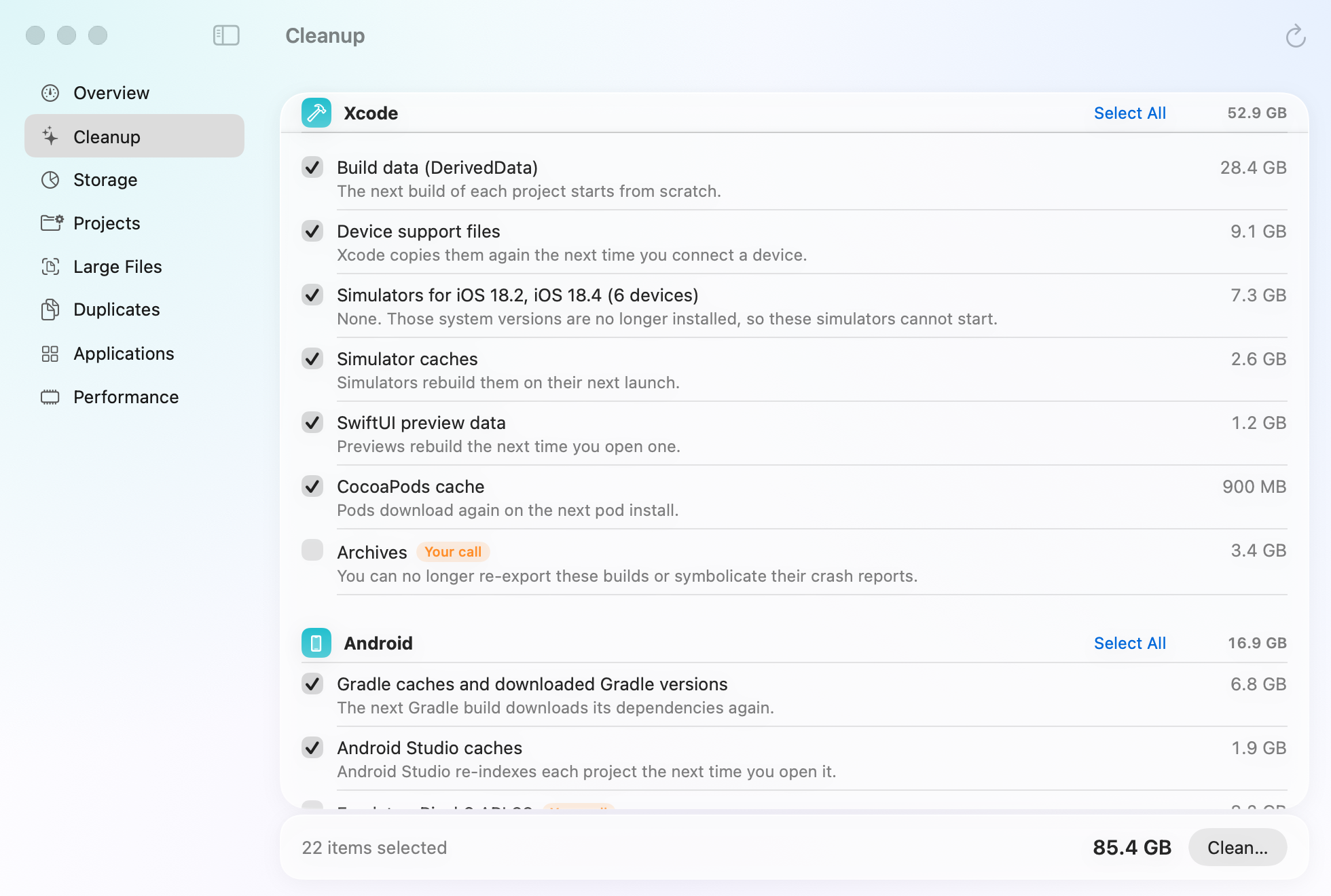
Xcode is one of the biggest users of disk space on a developer's Mac. Most of what it stores can be rebuilt, so it's safe to clear, as long as you know what each folder is for.
What takes the space
These folders are in ~/Library/Developer, except the CocoaPods cache, which is in
~/Library/Caches.
| Folder | What it holds | Safe to delete? |
|---|---|---|
Xcode/DerivedData | Build products, indexes and logs of every project you've built | Yes. The next build of each project starts from scratch. |
Xcode/iOS DeviceSupport | Files Xcode copies from each iOS version of the devices you connect | Yes, for versions you no longer use. Xcode copies them again when you connect a device. |
CoreSimulator/Devices | Your simulators, with the apps and data inside them | The ones you don't use. Simulators for iOS versions you've removed can't start anyway. |
CoreSimulator/Caches | Simulator caches | Yes. Simulators rebuild them. |
Xcode/UserData/Previews | SwiftUI preview builds | Yes. Previews rebuild the next time you open one. |
Xcode/Archives | Builds you archived for release, with the symbols for their crash reports | Only if you'll never re-export those builds or read their crash reports. |
CocoaPods | Downloaded pods | Yes. They download again on the next pod install. |
To see how big each one is, without changing anything:
du -sh ~/Library/Developer/*/* 2>/dev/null | sort -h | tail -15Clear DerivedData
Quit Xcode first, then run:
rm -rf ~/Library/Developer/Xcode/DerivedDataThis deletes the build data of every project, for good, and Xcode makes a new, empty folder on its next build. Your source code isn't touched. The next build of each project takes longer while Xcode rebuilds it. To clear only the build products of the project you have open, choose Product › Clean Build Folder in Xcode.
Remove simulators you can't use
xcrun simctl delete unavailableThis deletes the simulators whose iOS version is no longer installed. To remove whole iOS versions you no longer test on,
open Xcode › Settings › Components (called Platforms in older Xcode versions), or list them with
xcrun simctl runtime list and remove one with xcrun simctl runtime delete followed by its ID.
Remove old device support files
In Finder, choose Go › Go to Folder, type ~/Library/Developer/Xcode/iOS DeviceSupport, and move the folders
for iOS versions you no longer test on to the Trash.
Keep the archives you might need
Each archive holds the debug symbols of its build. Without them you can't make sense of crash reports from that release. Delete old archives in Xcode's Organizer (Window › Organizer) once a release no longer matters.
Related guides
- How to find and delete old node_modulesFind every node_modules folder and its size, remove the ones you don't need, and clear package caches.
- How to free up Docker Desktop disk spaceSee what fills Docker's disk image and reclaim space with Docker's own prune commands.
- What is System Data on a Mac?What fills the grey System Data bar in your storage settings, and how to shrink it safely.