 Mopup
Mopup › Guides › iPhone backups
How to delete old iPhone and iPad backups on a Mac
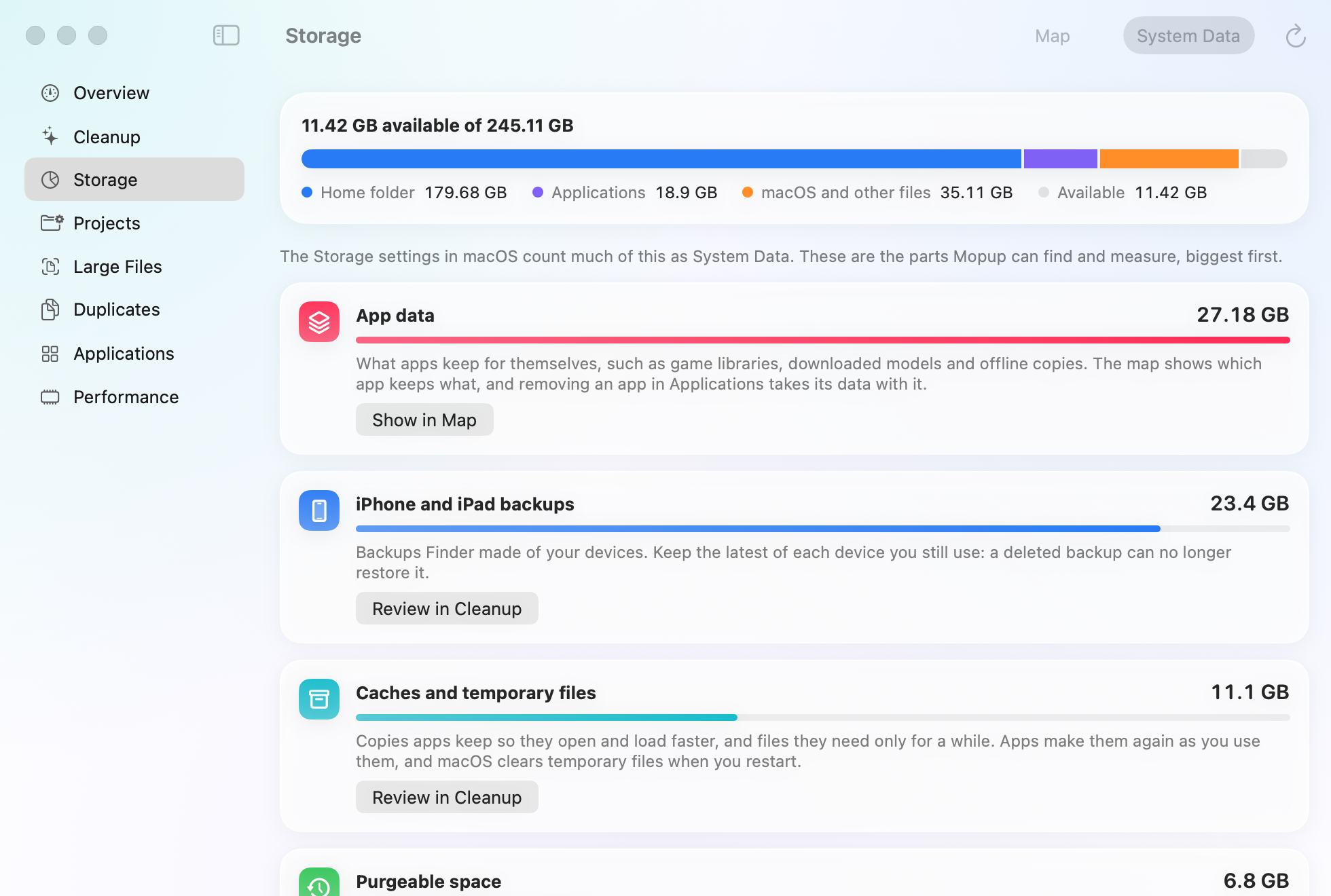
When you back up an iPhone or iPad to your Mac, the backup stays until you delete it. The backup of a phone you sold years ago can still take tens of gigabytes.
Where the backups are
Finder keeps them in ~/Library/Application Support/MobileSync/Backup, each in a folder named with a long
code rather than the device's name. A new backup of a device replaces its last one, unless you archived it, so there's
usually one for every device you've ever backed up, plus any you archived.
In System Settings › General › Storage, they're counted as iOS Files, together with the iPhone and iPad software Finder downloaded. If iOS Files has an Info button (ⓘ), click it to see them, select one you don't need, and click Delete.
To see how much each backup takes, run this in Terminal. It changes nothing:
du -sh ~/Library/Application\ Support/MobileSync/Backup/* 2>/dev/nullIf it shows nothing, Terminal needs Full Disk Access to read the folder. Turn it on in System Settings › Privacy & Security › Full Disk Access.
Delete a backup in Finder
This is Apple's own way, and it needs one of your devices connected.
- Connect your iPhone or iPad to your Mac with a USB cable, and select it in Finder's sidebar. If it asks, tap Trust on the device and enter its passcode.
- In the General tab, click Manage Backups.
- Control-click the backup you don't need and choose Delete. Click OK when you're done.
The list shows the backups of all your devices, so you can delete an old phone's backup while a newer one is connected. Once a backup is deleted, it can't be recovered.
Without the device
If you no longer have the phone or tablet, use Storage settings as above, or delete its backup's folder yourself:
- In Finder, choose Go › Go to Folder, enter
~/Library/Application Support/MobileSync/Backup, and press Return. - To see which device a folder belongs to, open it, select
Info.plistand press Space. Quick Look shows the Device Name and the Last Backup Date. - Move the whole folder of a backup you don't need to the Trash, then empty the Trash. Never move or delete single files inside a backup: what's left would no longer restore.
Before you delete
- Keep the latest backup of each device you still use, unless the device backs up to iCloud. A deleted backup can no longer restore it.
- Backups in iCloud don't take space on your Mac. Deleting a backup here leaves them as they are.
- An encrypted backup holds more than an unencrypted one, such as saved passwords and Health data. Keep an old one if you might still need what's in it.
iPhone and iPad software updates
When Finder updates or restores a device, it downloads that device's system software, several gigabytes at a time,
and keeps it in ~/Library/iTunes, in a folder such as iPhone Software Updates or iPad Software Updates.
Finder downloads it again when it needs it, so it's safe to delete: choose Go › Go to Folder, enter
~/Library/iTunes, and move the .ipsw files in those folders to the Trash.
Related guides
- Not enough space to update macOS?What to clear when an update won't install for lack of space, from quick wins to safe mode.
- What is System Data on a Mac?What fills the grey System Data bar in your storage settings, and how to shrink it safely.
- How to find large files on a MacFind your biggest files with Storage settings, Finder or Terminal, and tell which can go.