 Mopup
How to find large files on a Mac
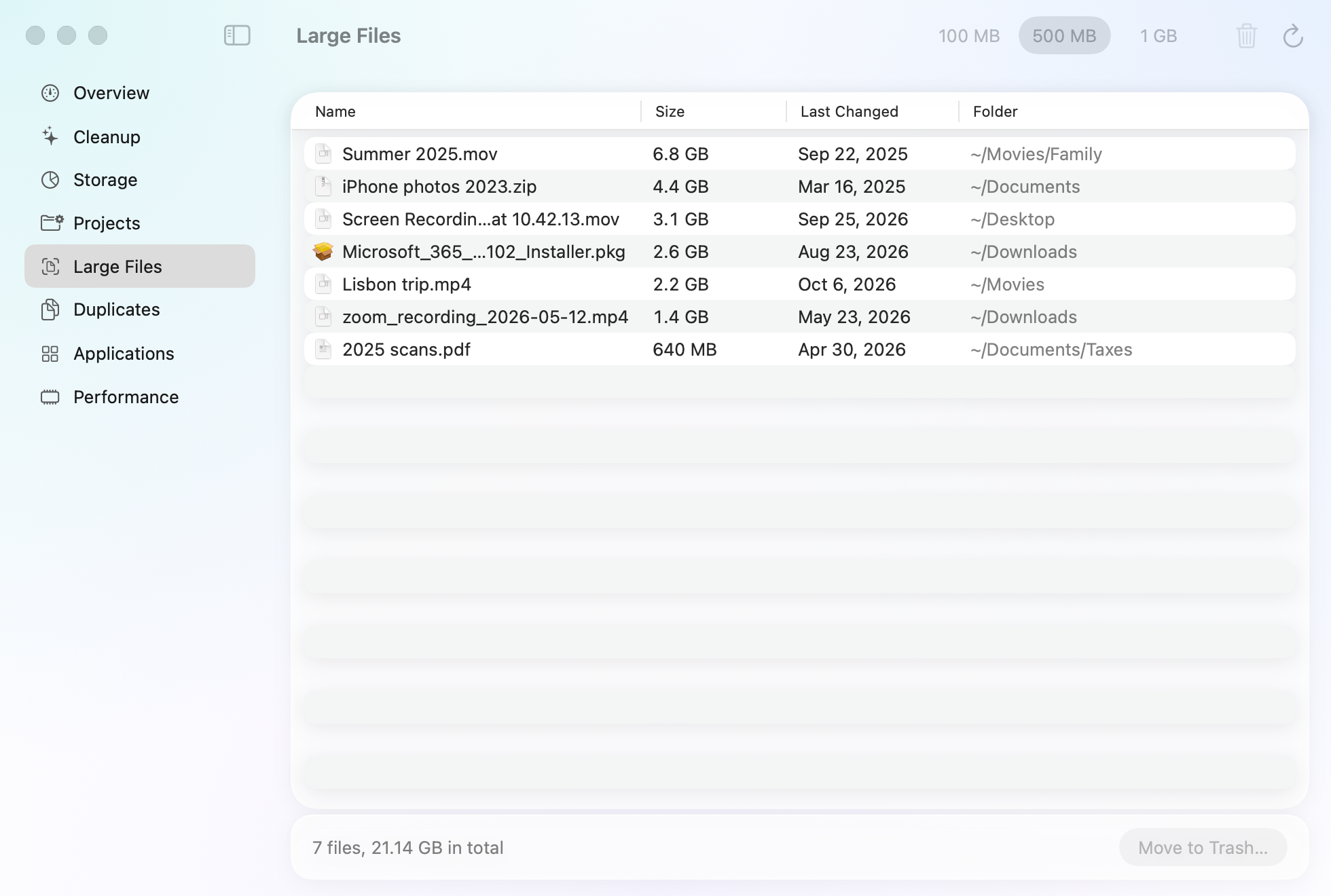
A few big files often take more space than thousands of small ones: videos, disk images, installers and archives you downloaded once and forgot. Here are three ways to find them, and how to tell which can go.
In Storage settings
Choose Apple menu › System Settings › General › Storage, then click the Info button (ⓘ) next to Documents. Click Large Files to list them, and click Size to put the biggest first. Select one and click Show in Finder to look at it first, or Delete if you're sure.
Documents only counts what isn't in another category, so your photos, mail and apps, for example, aren't in the list.
In Finder
- In Finder, choose File › Find, and click This Mac.
- Click the Kind menu and choose Other. Select File Size in the list and click OK.
- Set it to is greater than, type 500 and choose MB.
Finder lists every file over that size. To sort them, choose View › as List, then View › Show View Options, tick Size, and click the Size column.
In Terminal
This lists the 20 largest files over 500 MB in your home folder, smallest first, and changes nothing. It can take a minute, and macOS may ask whether Terminal may look in some folders:
find ~ -type f -size +500M -exec du -h {} + 2>/dev/null | sort -h | tail -20What's usually safe to delete
- Disk images (
.dmg) and installers (.pkg) of apps you've already installed. - Archives (
.zip,.xip) you've already opened, once you've kept what was inside. - Screen recordings and videos you've watched, shared or saved somewhere else.
- Disk images of operating systems (
.iso) you no longer run.
What to leave alone
- Files inside your Photos, Music or TV library. Delete photos and videos in the app instead, or you may damage the library.
- Virtual machines and databases you still use, even if you haven't opened them for a while.
- Anything in a Library folder you don't recognize. The System Data guide explains what's there.
Moving a file to the Trash doesn't free its space until you empty the Trash.
Related guides
- How to find and remove duplicate filesFind identical files and near-identical photos, decide which copy to keep, and remove the rest.
- Not enough space to update macOS?What to clear when an update won't install for lack of space, from quick wins to safe mode.
- How to delete old iPhone and iPad backupsWhere your Mac keeps device backups, how big they get, and how to delete the ones you don't need.