 Mopup
Mopup › Guides › macOS updates
Not enough space to update macOS? How to make room
macOS needs free space to download an update, and more to install it. When there isn't enough, the update won't install until you make room. Most Macs have plenty that can go, once you know where to look.
See how much space you have
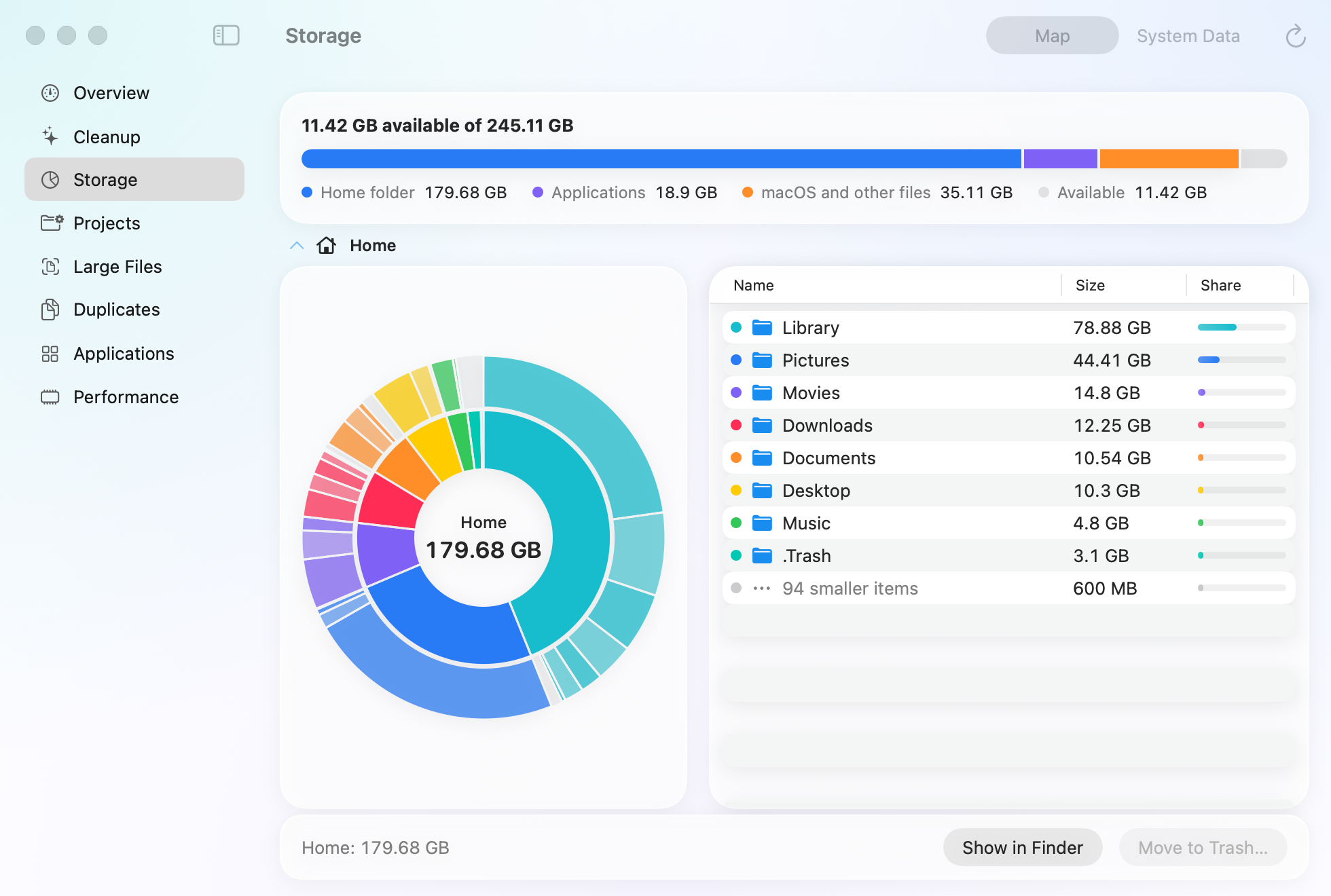
Choose Apple menu › System Settings › General › Storage. On macOS Monterey and earlier, choose Apple menu › About This Mac, then click Storage. The bar at the top shows what's used and what's available. Give it a minute: macOS works out the sizes in the background.
There's no single figure for how much an update needs, and a major upgrade needs far more than a small update. Free more than the download's size: the installer needs room to unpack, and your Mac needs room to keep working afterwards.
Start with the quick wins
- Empty the Trash. Files you moved there still take space until you do.
- Clear out Downloads. Disk images and installers of apps you've already installed, archives you've already opened, and copies of files you keep elsewhere. In Finder, open Downloads, choose View › as List, and click Size to put the biggest first.
- Delete installers of old macOS versions. An Install macOS app you downloaded but never ran stays in Applications and takes many gigabytes. Software Update doesn't need it.
- Delete old iPhone and iPad backups. Each one can take tens of gigabytes. The guide to iPhone backups shows which you can delete.
- Remove apps you don't use, with what they keep in your Library, as the uninstall guide describes.
- Find your largest files. Videos, disk images and archives you've forgotten are often the biggest things on a Mac. How to find large files shows three ways.
- Clear caches you don't need, with the guide to clearing cache.
Empty the Trash again when you're done. Until you do, nothing you deleted frees any space.
If you use Time Machine
With Time Machine on, macOS keeps snapshots of your files on your Mac for about a day, deletes them by itself when it needs the space, and counts that space as available. If an update still says the disk is full, delete them yourself:
sudo tmutil deletelocalsnapshots /This deletes the snapshots on your Mac only. Backups on your Time Machine disk stay as they are.
Still a little short? Start up in safe mode
Starting up in safe mode clears certain system caches, which macOS makes again as they're needed. Apple suggests it when you need the space for something like a macOS update.
- On a Mac with Apple silicon: shut down, then press and hold the power button until you see Loading startup options. Select your startup disk, then press and hold Shift and click Continue in Safe Mode.
- On a Mac with an Intel processor: restart, and press and hold Shift as soon as it starts up, until you see the login window.
To leave safe mode, restart as usual.
Update with Software Update
Install updates from Apple menu › System Settings › General › Software Update (System Preferences › Software Update on macOS Monterey and earlier) rather than downloading the full installer. Apple says Software Update can use less storage space than other ways of installing.
What not to delete
- Anything in
/Systemor/private/var. macOS needs it, and protects most of it anyway. - Files inside your Photos or Music library. Delete photos and songs in the app instead, or you may damage the library.
- The latest backup of an iPhone or iPad you still use, unless it backs up to iCloud.
Related guides
- How to delete old iPhone and iPad backupsWhere your Mac keeps device backups, how big they get, and how to delete the ones you don't need.
- How to find large files on a MacFind your biggest files with Storage settings, Finder or Terminal, and tell which can go.
- What is System Data on a Mac?What fills the grey System Data bar in your storage settings, and how to shrink it safely.